Disney Solitaire: Quick Progression and Level Tips
Disney Solitaire is an enchanting, family-oriented card game that adds a magical flair to the classic solitaire formula. In contrast to traditional versions, Disney Solitaire frequently incorporates special power-ups and themed events, introducing additional layers of strategy and enjoyment. Each Disney character offers a unique story-driven gameplay experience, creating a delightful and nostalgic journey for fans of every generation. While the game is easy to grasp, we’ve compiled several advanced tips in this guide to help newcomers progress more swiftly. Let’s dive in!
Tip #1. Learn how Card Management works!
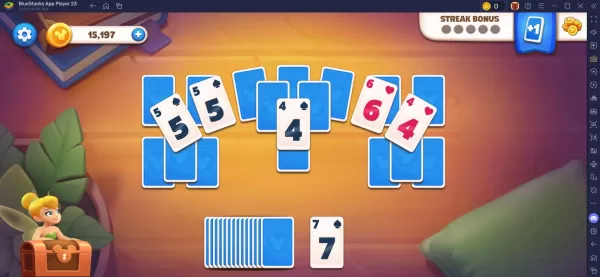
Disney Solitaire differs from typical solitaire-style games with its own unique gameplay twist. Players may only remove cards from the tableau that are one rank higher or lower than the card displayed at the bottom. If no matching cards are available on the table, you’ll need to draw a new card and hope for a lucky match. This core mechanic remains consistent throughout the game, with few variations. Therefore, all players should keep this principle in mind, especially when facing tougher levels. Your primary objective in each level is to reveal all face-down cards on the table and move them to the foundation until none are left!
Tip #5. Use Runner Cards to Aid you in Victory
Runner cards are another exclusive feature found in Disney Solitaire. These special cards allow you to alter the rank of any single card on the tableau. There are two varieties: the Runner Up Card and the Runner Down Card. The Runner Up Card increases the rank of the selected card by one, while the Runner Down Card decreases it by one. These cards are particularly useful in tricky situations when you're out of moves and would otherwise have to draw additional cards.
You can also enjoy Disney Solitaire on a larger screen by playing on your PC or laptop through BlueStacks, using your keyboard and mouse for a more comfortable experience.
Latest Articles
Trending Games






Top News
![Roblox Forsaken Characters Tier List [UPDATED] (2025)](https://images.dyk8.com/uploads/18/17380116246797f3e8a8a39.jpg)

Latest Games